ProxyDesk gives every tool on your machine one local proxy address, 127.0.0.1:11080 for SOCKS5 and 127.0.0.1:18080 for HTTP, and sends each connection out through one of your proxies. It tests what you add, takes failing proxies out of rotation and retests them, refuses connections rather than going direct when nothing works, and keeps a log of recent connections you can export to CSV. To set it up: download it from your dashboard, sign in or paste your proxies, press Start, and point your scraper or browser at the local address.
Written against the ProxyDesk source on 2026-11-06. The ProxyDesk page shows every screen in light and dark.
Before you start
- Download ProxyDesk from the desktop app page of your dashboard, https://app.proxyhive.io/desktop-app, after you sign in. It lists the build for each platform: Windows, Linux and macOS. The questions on the ProxyDesk page cover the warnings your system may show on first launch.
- Have proxies to give it: the ones on your ProxyHive account, or a list from anywhere else.
- Decide which tools will use it. Only an app you point at the local address goes through ProxyDesk; nothing else on the machine changes.
Get set up
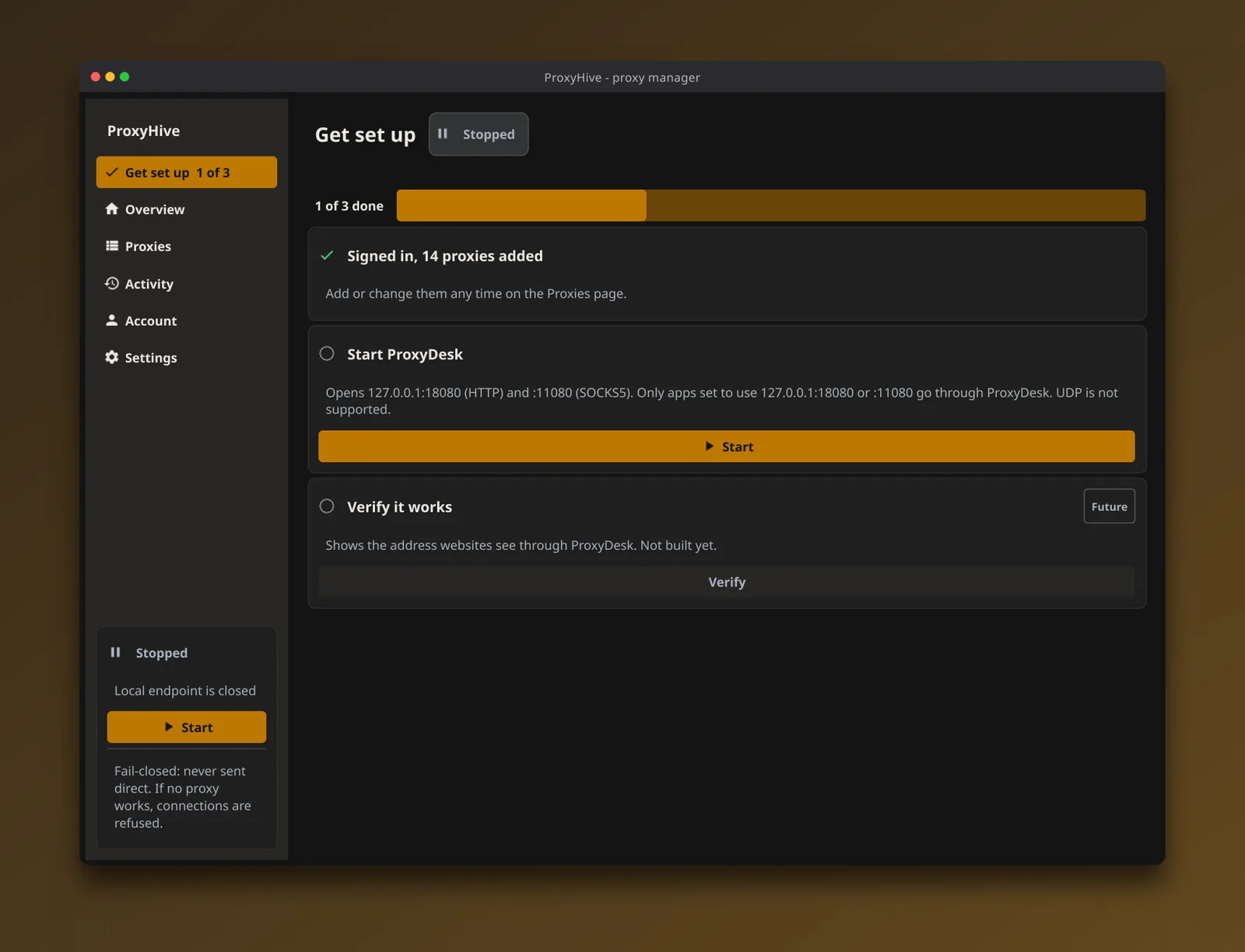
The first screen is a three-step checklist: sign in or import your proxies, start ProxyDesk, and verify. The verify step is marked as not built yet, and it says so on the screen; the checks further down this guide do the same job by hand.
Add your proxies
From your account. Press Sign in to ProxyHive. ProxyDesk opens your browser at the sign-in page; sign in there and come back to the window, which picks the session up. If it does not, the sign-in page shows a code: press Have a code? in ProxyDesk and paste it. Then open Proxies, go to From my account, select a proxy and press Connect to add it and start.
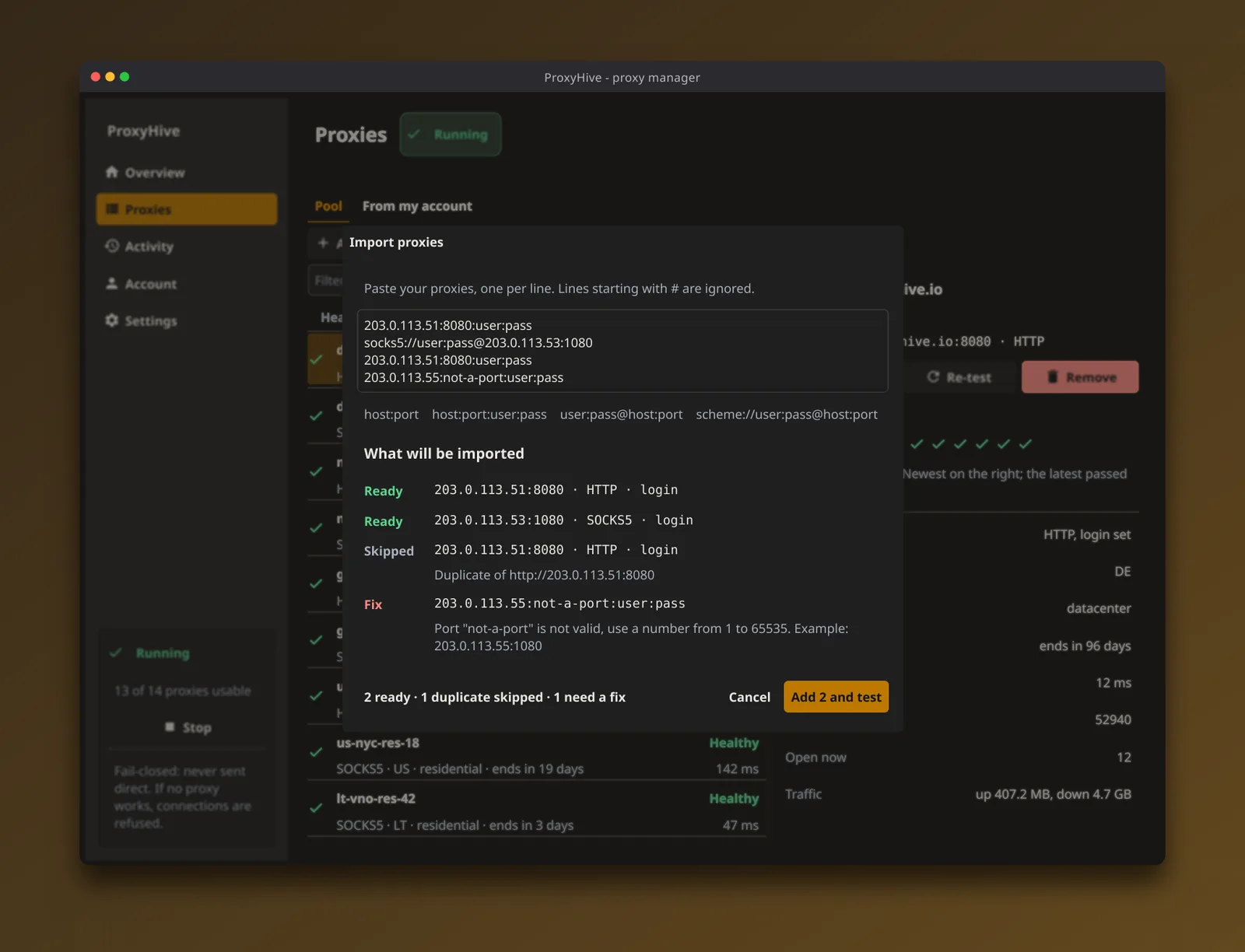
From a list. On Proxies, press Import and paste one proxy per line. ProxyDesk reads host:port, host:port:user:pass, user:pass@host:port and scheme://user:pass@host:port with http or socks5 as the scheme, and ignores lines starting with #. Nothing is added while you paste: a preview marks each line Ready, Skipped (a duplicate, with the line it repeats) or Fix (with the reason and an example of a valid line). The button reads Add 2 and test when two lines are ready, and it adds those and tests them in one go.
The test opens a connection through each proxy to the test address, example.com:80 unless you change it in Settings, and reports which proxies answered, how fast, and why the rest did not. Sharing that test report goes through the report line by line.
Start the local address
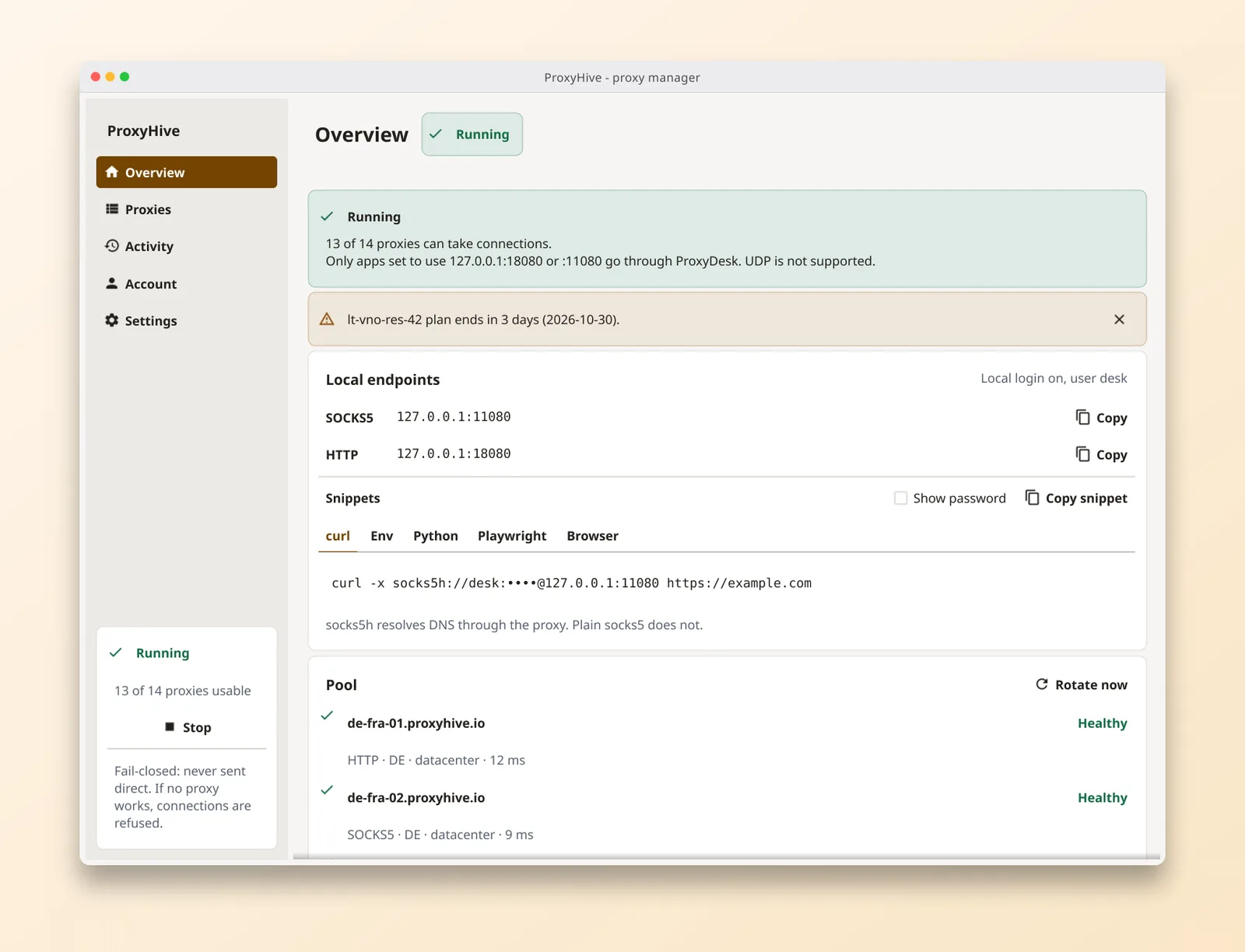
Press Start. The Overview page shows how many proxies can take connections, both local addresses with a Copy button each, and the snippets below. The ports are set in Settings, along with an optional local username and password: leave the username blank and any app on the machine may connect.
The address listens on 127.0.0.1 only. A separate switch, Accept connections from other machines on the network, opens it to your network; set a local login first if you use it.
Point your tools at it
The Snippets box on the Overview fills in your ports, and your local login if you set one, with the password masked until you copy it. With the default ports and no local login, these are its five snippets, copied from the app:
curl -x socks5h://127.0.0.1:11080 https://example.com
export ALL_PROXY=socks5h://127.0.0.1:11080
export HTTP_PROXY=http://127.0.0.1:18080
export HTTPS_PROXY=http://127.0.0.1:18080
import requests  # pip install requests[socks]
proxies = {"http": "socks5h://127.0.0.1:11080", "https": "socks5h://127.0.0.1:11080"}
print(requests.get("https://example.com", proxies=proxies).status_code)
const browser = await chromium.launch({
  proxy: { server: "http://127.0.0.1:18080" },
});
Proxy type: SOCKS v5
Host: 127.0.0.1
Port: 11080
Proxy DNS when using SOCKS v5: on
The h in socks5h matters: it sends the host name to the proxy, so DNS is resolved at the exit and not by your own resolver. Plain socks5 resolves locally. The cURL, Python requests and Playwright guides cover each client in depth, and socks5h has its own glossary entry. Whatever you point at ProxyDesk keeps the same address while you change the proxies behind it, so a script never needs editing to swap a pool.
What happens when a proxy dies
Rotation. By default every new connection gets the next working proxy in your list. Settings offers the other mode, Stay on one proxy until it fails, for targets that want one address per session. Rotate now moves on immediately in either mode.
A failed proxy. If the proxy picked for a connection fails, ProxyDesk tries another, up to three proxies per connection, so one dead proxy costs a retry rather than the request. The failed proxy leaves rotation and is retested 5 minutes later; if it fails again, the wait doubles each time up to 30 minutes. Both times are in Settings. A proxy whose plan has ended is not dialled at all.
Nothing left. When no proxy works, new connections are refused. ProxyDesk is fail-closed: it never sends a request out on your own connection to keep a job going.
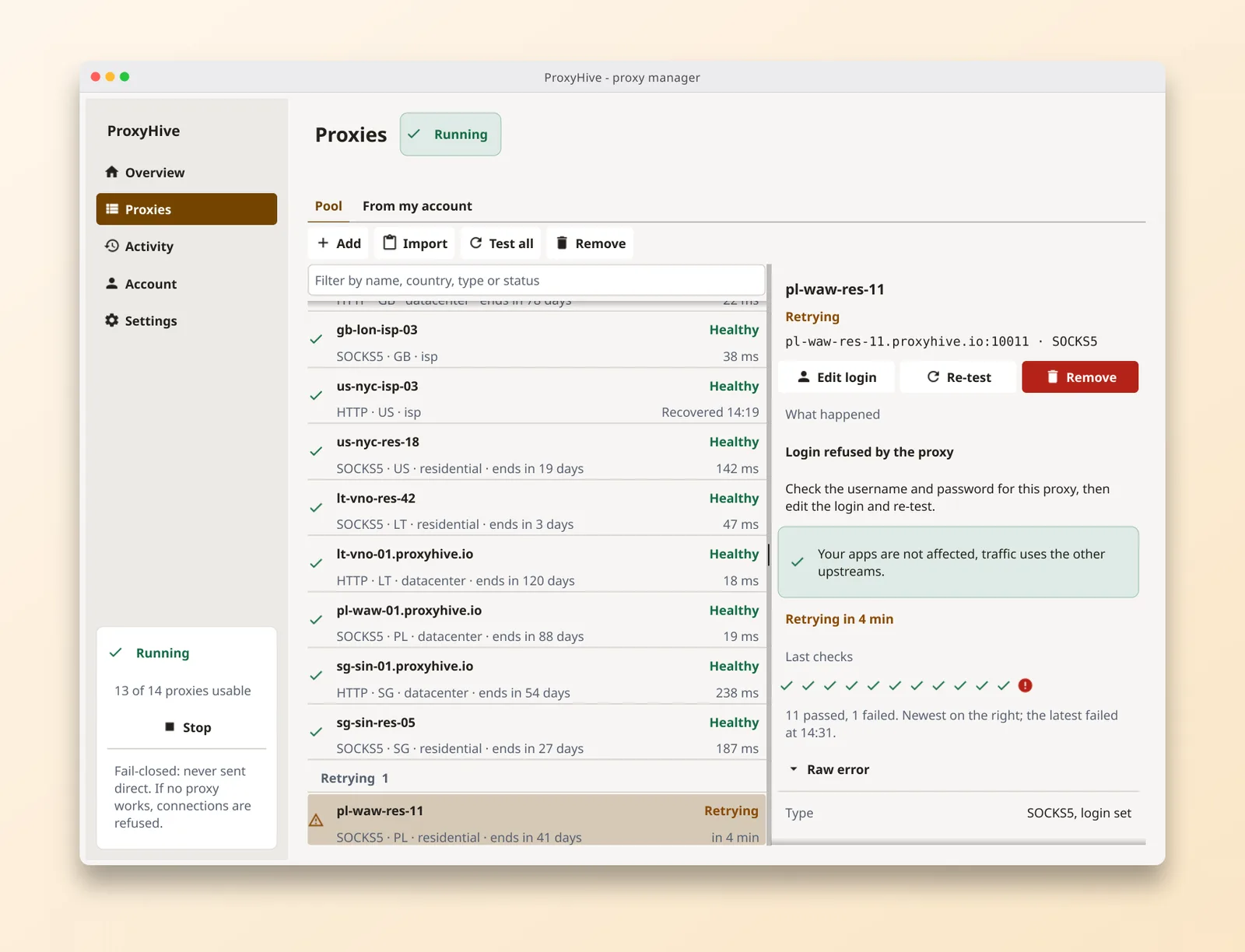
The Proxies page shows all of it: each proxy's health and latency, when a recovered one came back, and for a failing one the reason in plain words, its last checks and when the next retest is due.
Read the activity log
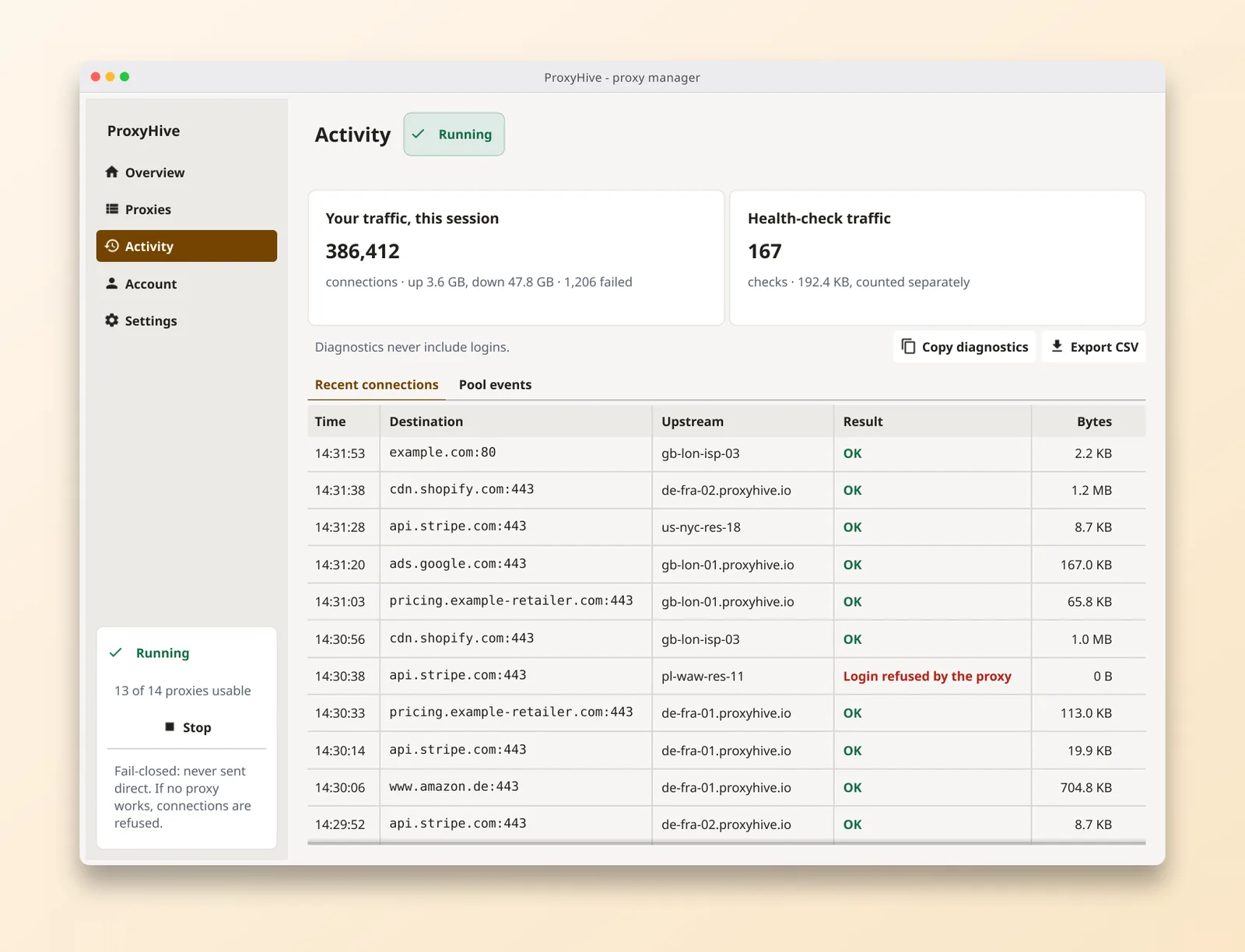
Activity totals the session's connections and traffic, and counts the health checks separately so the totals are your traffic only. Below it is a table of recent connections: time, destination, the proxy that carried it, and the result. Export CSV saves those rows with the columns time, destination, upstream, result, cause, error, bytes_up and bytes_down. Copy diagnostics copies a plain-text summary for support, with each proxy's login shown only as yes or no.
Troubleshooting
Each failure in ProxyDesk carries a plain cause and a next step. The common ones:
| Cause | What to do |
|---|---|
| Login refused by the proxy | Check the username and password, then Edit login and re-test |
| 407 Proxy Authentication Required | The HTTP proxy wants a login; check it, then edit and re-test |
| Proxy cannot be reached | Check the host and port and any firewall; ProxyDesk keeps retrying |
| Proxy sent an unexpected reply | The port and type do not match; check HTTP against SOCKS5 |
| This plan has ended | Renew the plan or remove the proxy |
| No working proxy available | Add a proxy or re-test; apps are refused rather than sent direct |
When a tool fails but ProxyDesk shows nothing, the tool is probably not using the local address at all; run the curl snippet above to check. For the browser only, the ProxyHive browser extension is the lighter option.